


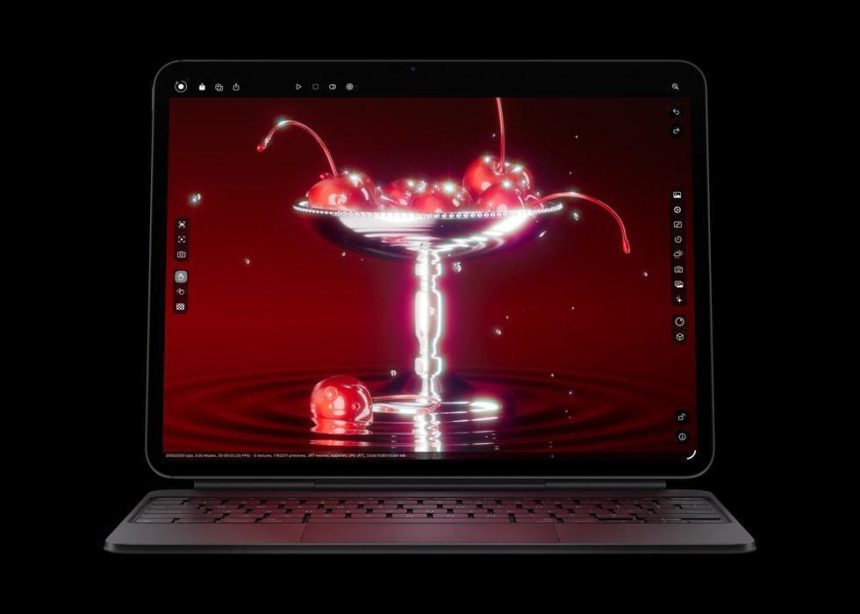
Apple’s new iPad Pro M5 has arrived — and it’s not just another spec bump. With the upgraded M5 chip, Wi-Fi 7 connectivity, and a design slim enough to make even the MacBook Air look chunky, this tablet is officially capable of replacing your laptop.
But here’s the thing: the hardware is only half the story. To truly go laptop-free, you’ll need the right setup — a combination of smart accessories, good ergonomics, and workflow tweaks that unlock the iPad’s potential.
Whether you’re a student, freelancer, or digital nomad, here are seven ways to turn your iPad Pro M5 into a complete mobile workstation — no laptop required.
1. Start with the Right Foundation — A Stand-Ready Case
Before you add keyboards, hubs, or cables, you need a stable base. The iPad Pro’s ultra-thin frame is beautiful but fragile, and balancing it on a café table or airplane tray without support is a recipe for frustration.
That’s why a performance case is the foundation of every iPad workstation.
The ZUGU 360 Case is a standout option — designed specifically for the M4 and M5 generations. It combines multi-angle viewing, 360° rotation for portrait or landscape use, and a magnetic base strong enough to mount the iPad to a metal surface.
It’s drop-tested, sleek, and functional — the kind of case that transforms the iPad from a “nice screen” into a real workstation platform.
2. Pair It with the Magic Keyboard for Laptop-Style Typing
If you want your iPad to behave like a laptop, Apple’s Magic Keyboard is the most seamless addition. The trackpad support, backlit keys, and floating magnetic design make typing feel effortless.
However, if portability is a priority, you can also pair a Bluetooth keyboard of your choice. Combined with the ZUGU 360 Case’s stand positioning, you’ll have all the comfort of a clamshell design — without the bulk of a full laptop.
Tip: With Stage Manager enabled, you can type, drag windows, and switch apps just as fluidly as you would on macOS.
3. Master Multitasking with Stage Manager and Split View
The M5’s raw performance shines when you multitask. Apple’s Stage Manager feature lets you run multiple overlapping windows and connect external displays.
Here’s how to make it efficient:
- Use Split View to keep a notes app open beside Safari or Figma.
- Keep communication tools like Slack or Mail in floating windows for quick replies.
- Save workspace setups — Stage Manager remembers your app layout when you reconnect a monitor.
The combination of these features and the ZUGU 360 Case’s adjustable viewing angles means you can move smoothly from editing to presenting — no trackpad gymnastics required.
4. Add a Compact USB-C Hub for Drives and Displays
A proper workstation needs expansion. The iPad Pro M5’s Thunderbolt 4 port provides blazing-fast I/O, but one port won’t cut it for full-time work.
A compact USB-C hub solves that — giving you access to external storage, HDMI output, SD card readers, and even Ethernet. Choose one that passes through power so you can charge while connected.
Pair it with the ZUGU Case’s solid stand base, and you can plug in an external monitor while keeping your iPad stable — a perfect dual-screen setup for designers or video editors.
5. Use Cloud Apps and AI Tools Optimized for M5
The iPadOS App Store is now loaded with pro-grade tools that leverage the M5 chip’s AI processing and GPU acceleration.
A few worth exploring:
- DaVinci Resolve for iPad — full video editing on the go.
- Affinity Designer 2 — professional-grade vector and raster design.
- Notion, Canva, and Figma — all fully optimized for M5 multitasking.
- ChatGPT or Midjourney via Safari — integrated AI for creative workflows.
With iCloud, Google Drive, or Dropbox integration, your files are always synced. And thanks to the M5’s 3.5x faster Neural Engine, even heavy creative workloads feel effortless.
6. Boost Productivity with Sidecar and Universal Control
If you own a Mac, your iPad can instantly become a second display. Apple’s Sidecar and Universal Control features turn the iPad into a touchscreen extension of your desktop.
You can drag files between macOS and iPadOS, draw directly into Photoshop using Apple Pencil, or even mirror your desktop when presenting.
The ZUGU 360 Case makes this workflow ergonomic — you can tilt the iPad vertically for better line of sight while sketching or presenting, then rotate it back horizontally for editing.
It’s not just convenience — it’s about working smarter across ecosystems.
7. Go Fully Mobile – Protect and Pack Light
Once your iPad Pro M5 setup is dialed in, the real joy is mobility. You can work anywhere — coffee shops, planes, hotel desks, or co-working spaces — without lugging around a laptop and charger.
Here’s how to make it seamless:
- Store your Magic Keyboard and Apple Pencil with your iPad.
- Use the ZUGU 360 Case’s built-in Pencil holder and magnetic closure to keep everything secure.
- Sync with cloud apps so your work is always accessible.
- Use the iPad’s Low-Power Mode for extended battery life when traveling.
By combining protection, portability, and power, you’ve officially built a workstation that weighs less than most laptops — but works twice as flexibly.
Your iPad M5 Is Ready to Replace Your Laptop
The iPad Pro M5 doesn’t just rival a laptop anymore — in many ways, it surpasses it. Between the M5’s raw performance, iPadOS’s multitasking upgrades, and accessories designed for real-world usability, Apple’s tablet can now do nearly everything a traditional computer can. But to make the transition smooth, you need a setup that supports that power.

Lynn Martelli is an editor at Readability. She received her MFA in Creative Writing from Antioch University and has worked as an editor for over 10 years. Lynn has edited a wide variety of books, including fiction, non-fiction, memoirs, and more. In her free time, Lynn enjoys reading, writing, and spending time with her family and friends.