


There are many situations where you may need to factory reset an iPhone without the Apple ID or passcode. Maybe you forgot iPhone passcode, iPhone is disabled, stuck on the Apple logo, or is being prepared for resale.
Normally, Apple requires both the screen passcode and Apple ID password before allowing a factory reset. However, if you cannot access either of them, there are still several ways to erase the device and reset iPhone to factory settings.
Things to Know Before Factory Resetting iPhone
Before starting, there are a few important things you should understand:
- A factory reset erases all data and settings from the device.
- If Find My iPhone is enabled, Activation Lock may appear after the reset.
- You may still need the original Apple ID credentials during setup if the device is linked to an Apple account.
- If you have an iCloud or computer backup, you can restore your data later.
If the iPhone belongs to you and you simply forgot the passcode, the methods below can help you regain access.
How to Factory Reset iPhone Without Apple ID or Passcode
Method 1: Factory Reset iPhone Using Recovery Mode
Recovery Mode is one of the most reliable ways to reset a locked or disabled iPhone without entering the passcode. This method works even if the iPhone says “iPhone Unavailable” or “Security Lockout.”
Steps to factory reset iPhone in Recovery Mode:
Step 1: Connect your iPhone to the computer
Open iTunes or Finder on the computer. Connect your iPhone using a USB cable.
Step 2: Put the iPhone into Recovery Mode
iPhone 8 or later: Press and quickly release the Volume Up button, then the Volume Down button. Press and hold the Power button until the recovery mode screen (the computer and cable icon) appears.
iPhone 7 and 7 Plus: Press and hold the Power button and the Volume Down button at the same time until the recovery mode screen appears.
iPhone 6s and earlier: Press and hold both the Home button and the Power button at the same time until the recovery mode screen appears.
Step 3: Restore the iPhone
A message will appear saying there is a problem with the iPhone. Choose Restore. Wait for the firmware download and restoration process to finish.
After the reset is complete, your iPhone will restart and display the setup screen.
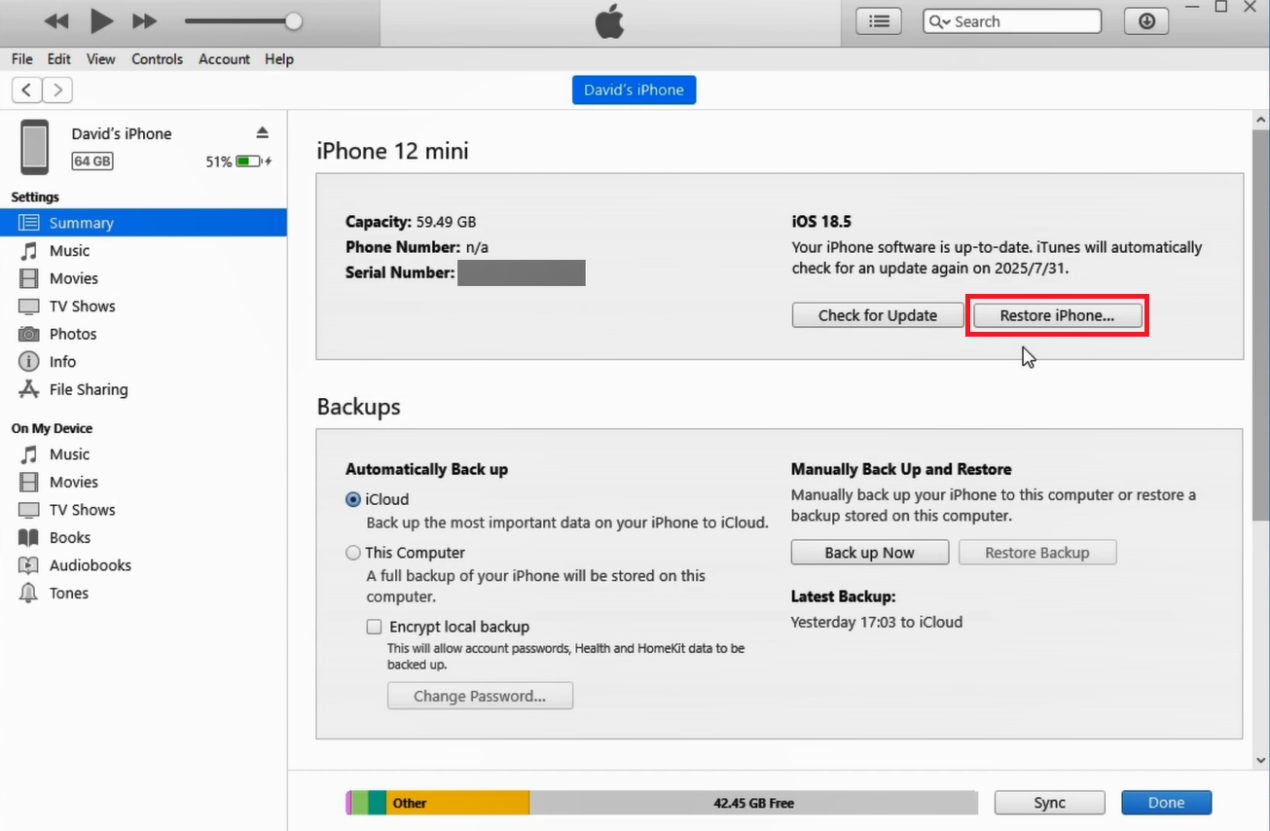
Method 2: Factory Reset iPhone with iTunes or Finder
If the device is still recognized by your computer, you may be able to erase it directly through iTunes or Finder without manually entering Recovery Mode. This method may work if your iPhone is connected and have trusted your computer before.
Steps:
- Connect the iPhone to your computer using a USB cable.
- Open iTunes or Finder.
- Click the phone icon at the top left.
- Choose Restore iPhone.
- Confirm the restoration process and wait for the software to erase and reinstall iOS.
Method 3: Factory Reset iPhone with TunesKit iPhone Unlocker
For users who want a more reliable and faster solution to factory reset an iPhone without Apple ID, some third-party tools like TunesKit iPhone Unlocker offer an easier way.
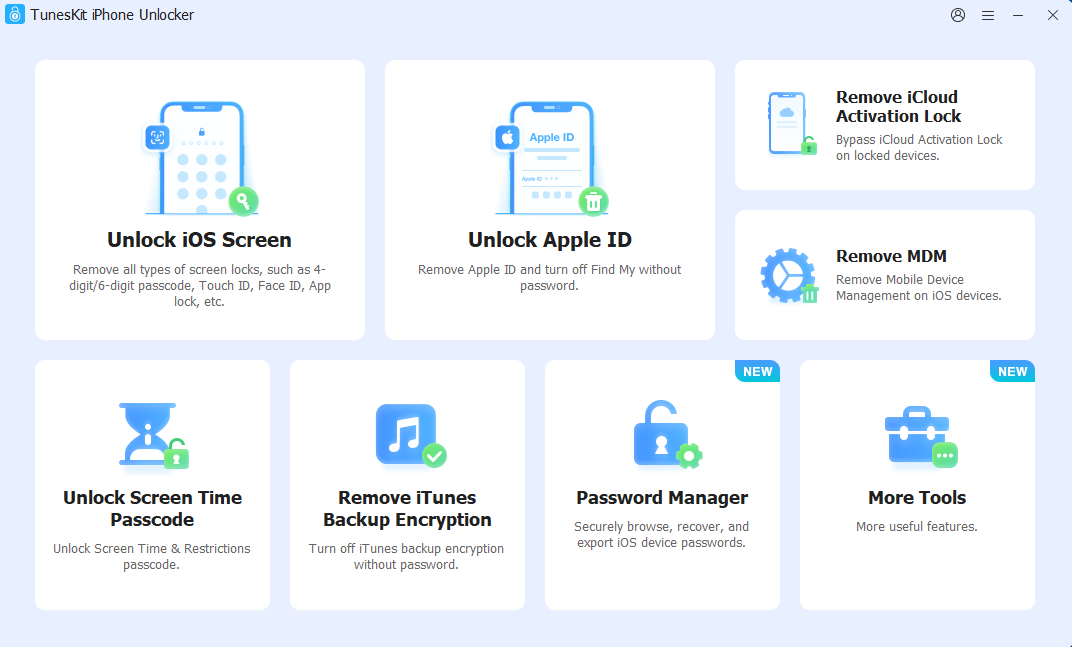
TunesKit iPhone Unlocker is a reliable tool designed to remove various iPhone lock screens, including screen passcodes, Apple ID, MDM lock and Activation lock. Whether you wonder how to unlock iPhone with broken screen, iPhone is disabled or unresponsive, it helps you regain access to your iPhone in just a few simple steps.
How to factory reset iPhone using TunesKit iPhone Unlocker:
Step 1: Connect the iPhone
Download and install TunesKit iPhone Unlocker on your Windows PC or Mac. Launch the program and connect your iPhone with a USB cable.
Step 2: Enter Recovery Mode
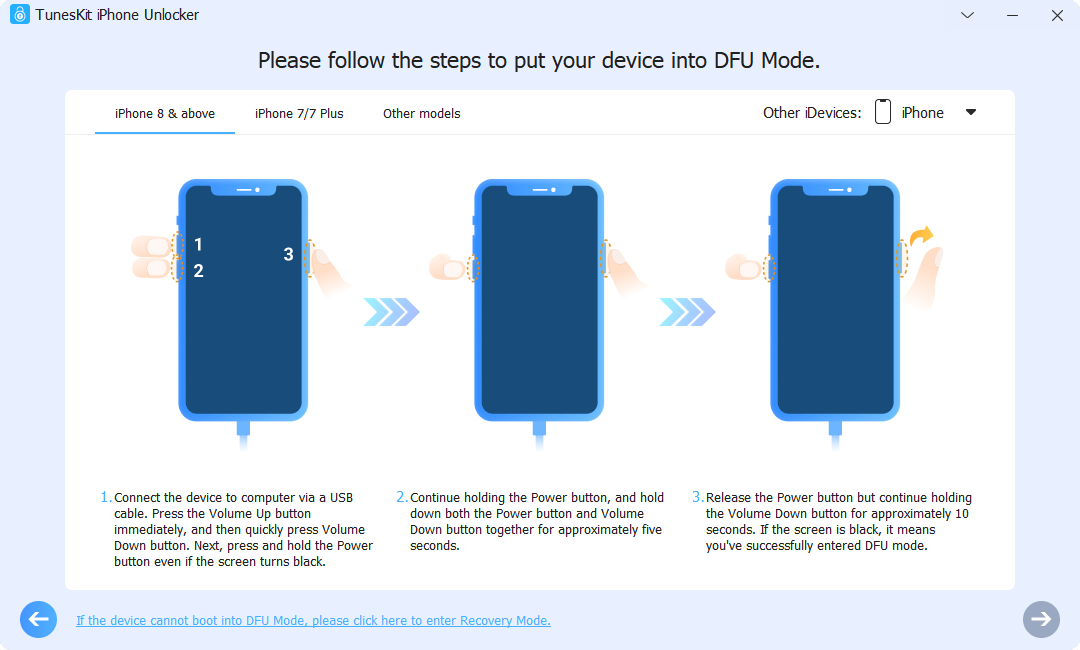
Choose the Unlock iOS Screen option. The software will guide you through placing the iPhone into Recovery Mode or DFU Mode.
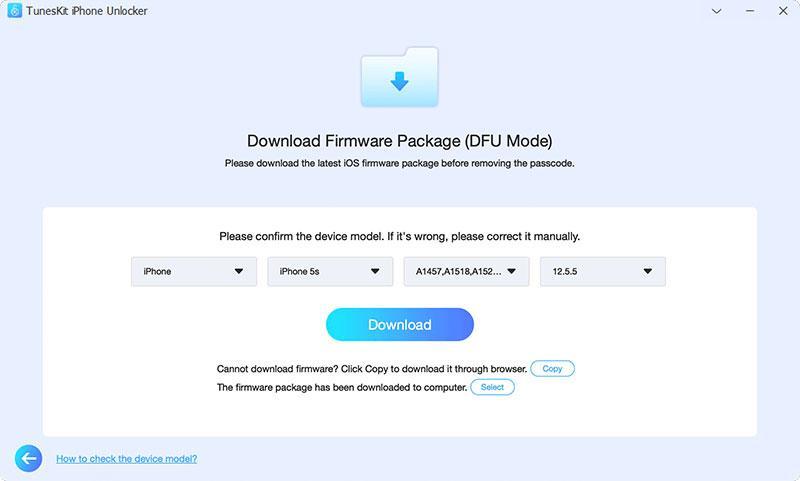
Step 3: Download firmware package
Once the device information appears, confirm the details and download the matching firmware package.
Step 4: Start a factory reset
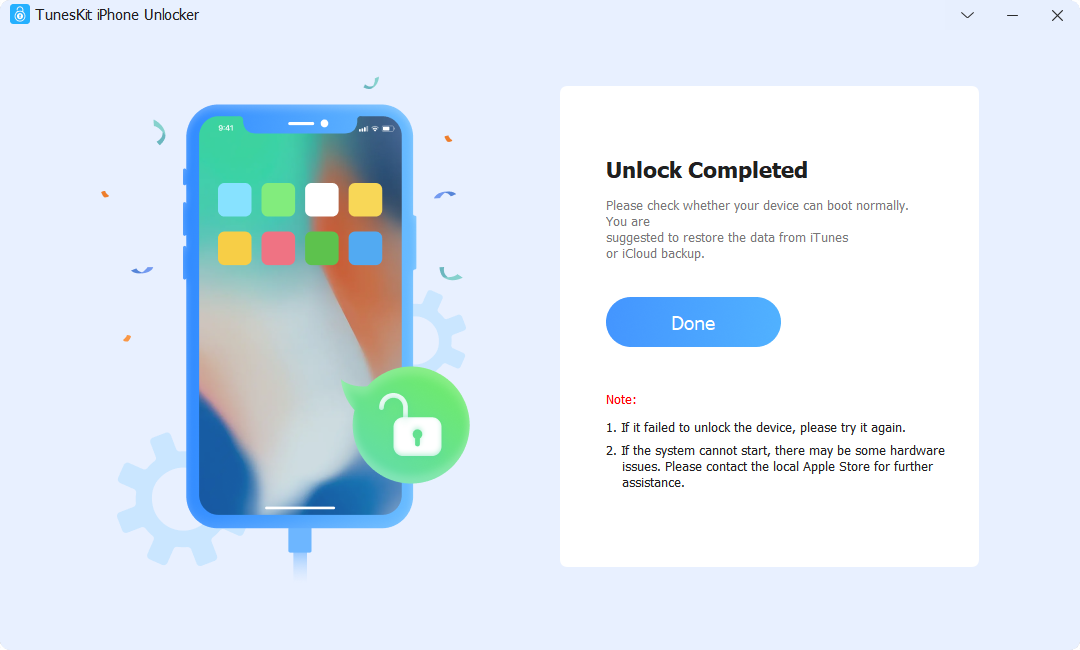
Click the Unlock button to remove the screen lock and erase the device. After several minutes, the iPhone will reboot as a factory-reset device.
How to Factory Reset iPhone Without a Computer
Method 1: Factory Reset iPhone Using iCloud Find My iPhone
If Find My iPhone was enabled before the device became locked, you can remotely erase it through iCloud. This method works without a computer and physically accessing the device settings, but it still needs the Apple ID password.
Steps to erase iPhone using iCloud:
- Go to iCloud.com on another phone or computer.
- Sign in with your Apple ID and password.
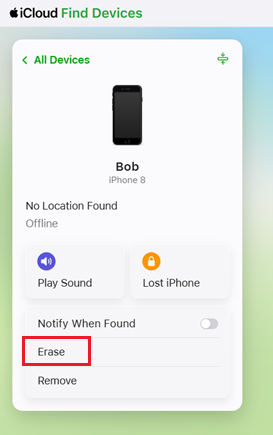
- Click Find My, select the locked iPhone from the device list.
- Click Erase. Confirm the action and wait for it to finish.
The iPhone will erase itself once connected to the internet.
Method 2: Factory Reset iPhone from the Erase iPhone Option
On iOS 15.2 or later, Apple added a direct erase option on the lock screen after multiple incorrect passcode attempts. If your device shows the “Erase iPhone” or “Forgot iPhone” button, you can reset it without using a computer. This method is very convenient, but it requires the Apple ID password to sign out of the connected account.
Steps to use Erase iPhone:
- Keep entering the wrong passcode until the “Security Lockout” or “iPhone Unavailable” screen appears.
- Tap Erase iPhone at the bottom corner.
- Tap it again to confirm.
- Enter your Apple ID password.
- Wait for the erase process to finish.
Once completed, the iPhone will restart and display the setup page.
Frequently Asked Questions about Factory Reset iPhone
1. Is it safe to factory reset an iPhone without a password?
Yes, it is generally safe as long as you are using legitimate methods such as iTunes, Finder, Recovery Mode, iCloud, or trusted software like TunesKit iPhone Unlocker.
2. Will factory resetting remove the passcode?
Yes. A factory reset removes the screen passcode and all content stored on the device. After the reset, the iPhone can be set up again as new.
3. What to do if iPhone locked to owner after factory reset?
If the iPhone shows the “iPhone Locked to Owner” screen after a factory reset, you will still need the original Apple ID and password to access the iPhone. You can provide proof of purchase to Apple Support if you are the legitimate owner. Or use the remove iCloud activation lock option in TunesKit iPhone Unlocker to bypass the lock.
Summary
There are several ways to factory reset an iPhone without Apple ID or passcode access. Recovery Mode and iTunes remain Apple’s official solutions, while a professional unlock tool like TunesKit iPhone Unlocker provides an easy-to-follow solution for resetting iPhones safely. Before resetting your device, remember that factory resetting erases all existing data. If possible, create a backup in advance so you can restore your important files after regaining access to the iPhone.

Lynn Martelli is an editor at Readability. She received her MFA in Creative Writing from Antioch University and has worked as an editor for over 10 years. Lynn has edited a wide variety of books, including fiction, non-fiction, memoirs, and more. In her free time, Lynn enjoys reading, writing, and spending time with her family and friends.